Cursor
Cursor is an AI programming IDE. By configuring it, you can connect to AI models on the Unisound Maas Platform through pay-as-you-go and U Plan.
Important: Cursor only supports custom model configuration for Premium members and above.
If you are not a Cursor Premium member, you may see this error after configuration:
The model u2-flash does not work with your current plan or api key.
1. Install Cursor
Visit the Cursor website to download and install Cursor.
2. Configure the U2-Flash model in Cursor
1. Add the U2-Flash model
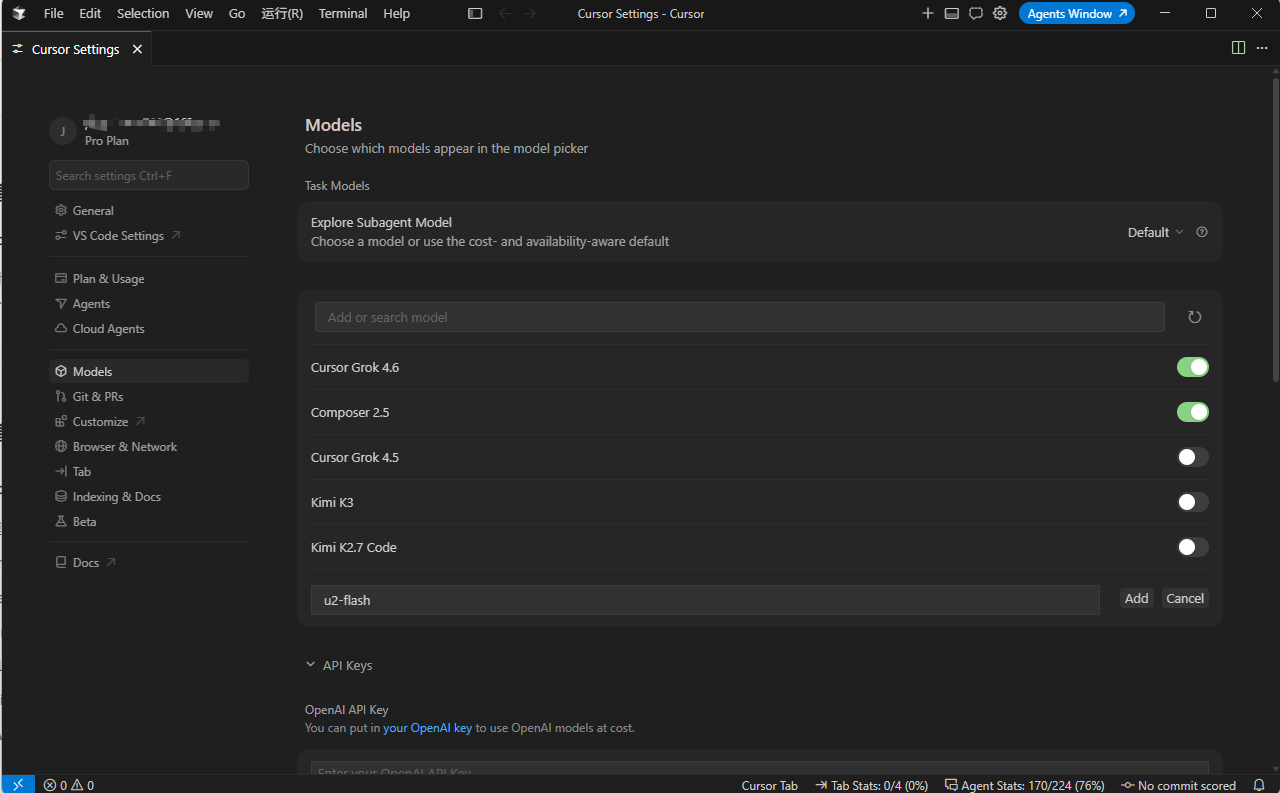
In Cursor, open the Models page, click Add model, enter u2-flash, and click Add model.
2. Configure API Key and BASE URL
Two usage modes are supported, and the credential acquisition method differs for each.
- Base URL OpenAI-compatible protocol: https://maas-api.unisound.com/v1
- API Key
- Format: sk-xxxxx
Go to API Key Management to create an API Key
- Base URL OpenAI-compatible protocol: https://maas-api.unisound.com/v1
- API Key
- Format: tp-xxxxx
After subscribing successfully, go to Subscription Management to get the dedicated API Key
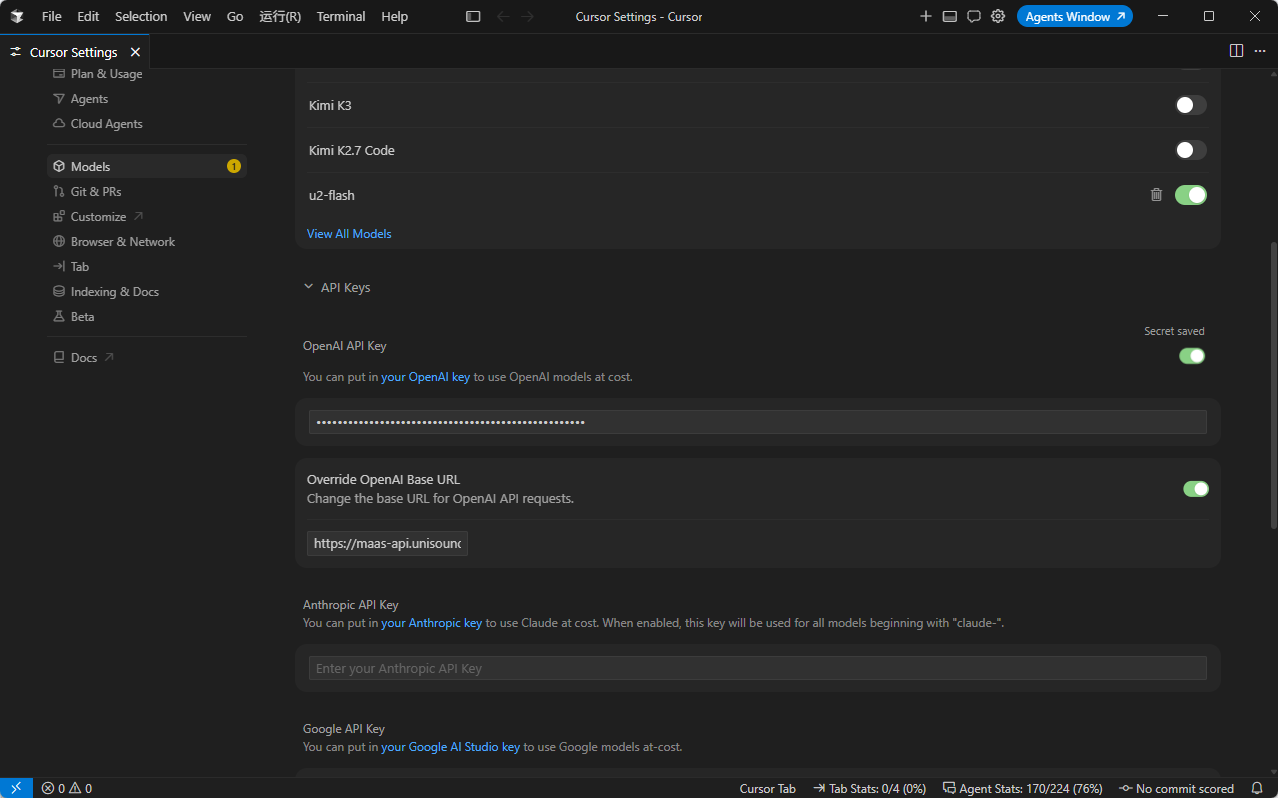
Enter the API Key and BASE URL obtained from API Key Management or Subscription Management.
3. Save and switch the model
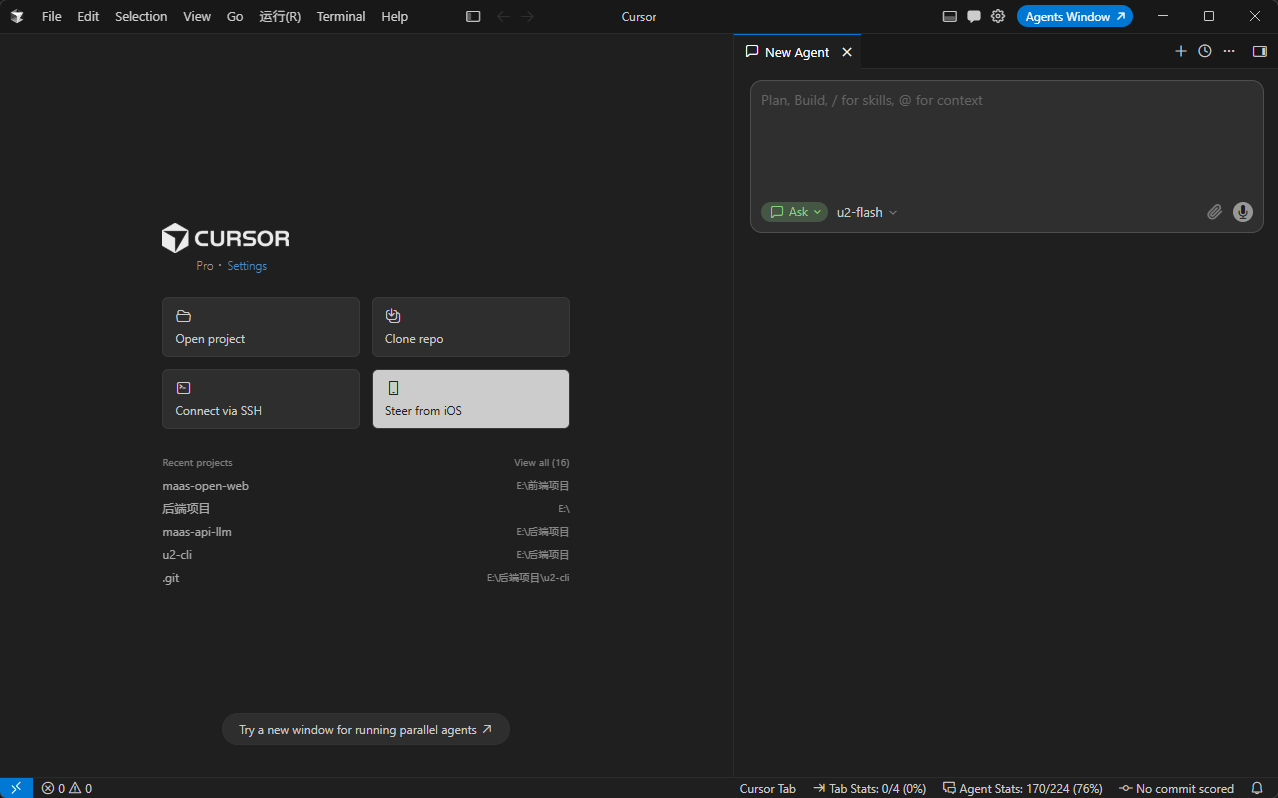
After configuration is complete, save the settings and select the model you just created on the home page to start using it.
3. Model Skill
We provide built-in U2-ASR, U2-TTS, U2-TTS-Clone, and U2-OCR capabilities. You only need to add the corresponding model Skill in Cursor to quickly call these model services without integrating each model API separately.
Click the links below to open the corresponding Skill pages. You can install each Skill via chat or the command line. After installation, the Skill will guide you through configuring the related models.