ZCode
ZCode is Zhipu's desktop AI coding environment. Configure it to use Unisound MaaS models with pay-as-you-go or U Plan.
1. Preparation
Before connecting an AI tool, complete the following preparation steps.
1. Get an API Key
The platform supports pay-as-you-go and U Plan. Credentials differ by billing mode:
- Base URL OpenAI-compatible: https://maas-api.unisound.com/v1 Anthropic-compatible: https://maas-api.unisound.com/anthropic
- API Key
- Format: sk-xxxxx
Go to API Key Management to create an API Key
- Base URL OpenAI-compatible: https://maas-api.unisound.com/v1 Anthropic-compatible: https://maas-api.unisound.com/anthropic
- API Key
- Format: tp-xxxxx
After successfully subscribing to U Plan, go to Subscription Management to get your dedicated API Key
Pay-as-you-go supports all modalities, including text, speech, and vision.
A plan-exclusive Key is for plan quota. It may exist before paid resources are available; you can use resources only when you have plan quota. See U Plan overview.
2. Install ZCode
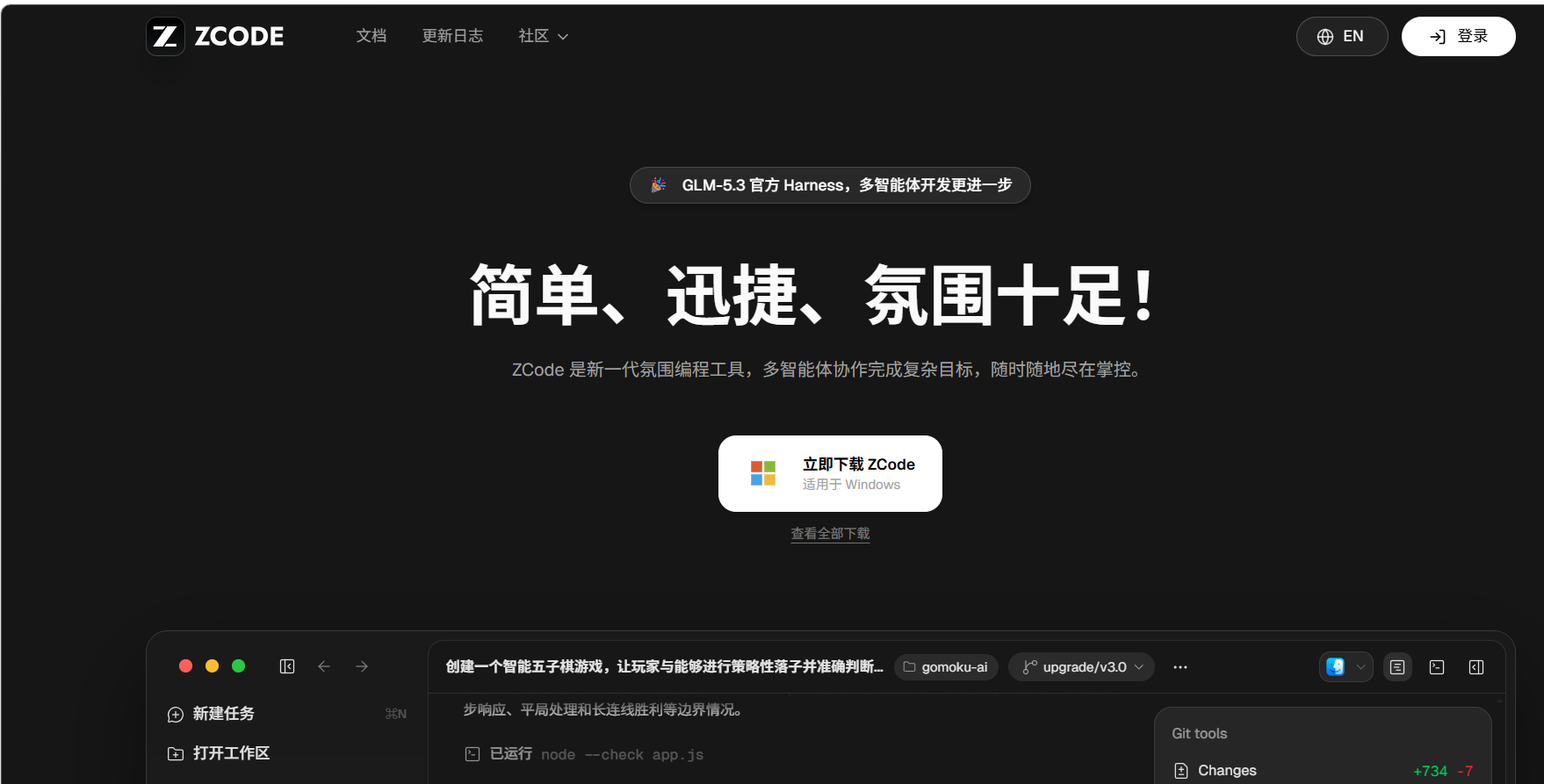
Visit the ZCode website and install the build for your OS.
3. Configure the target model
1. Open model management
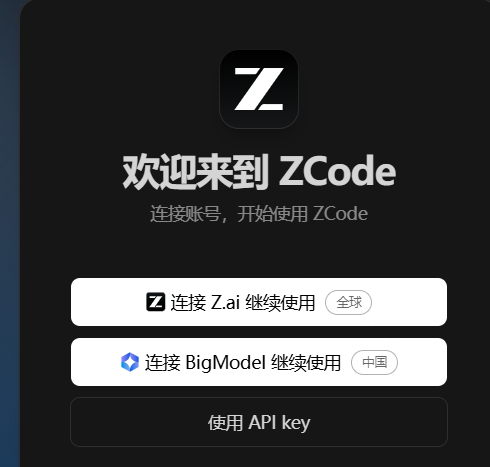
Launch ZCode, select connect BigModel to continue.
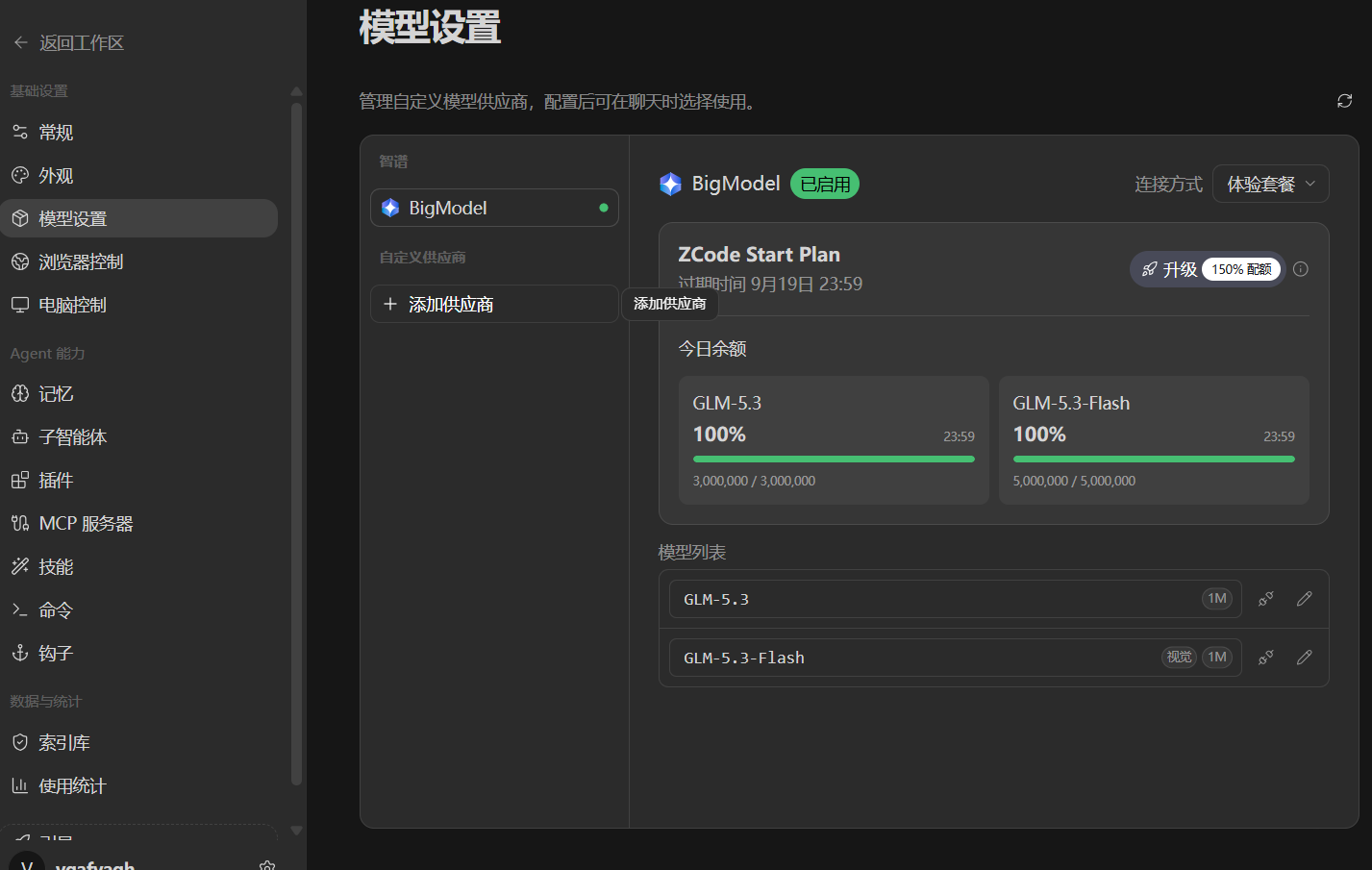
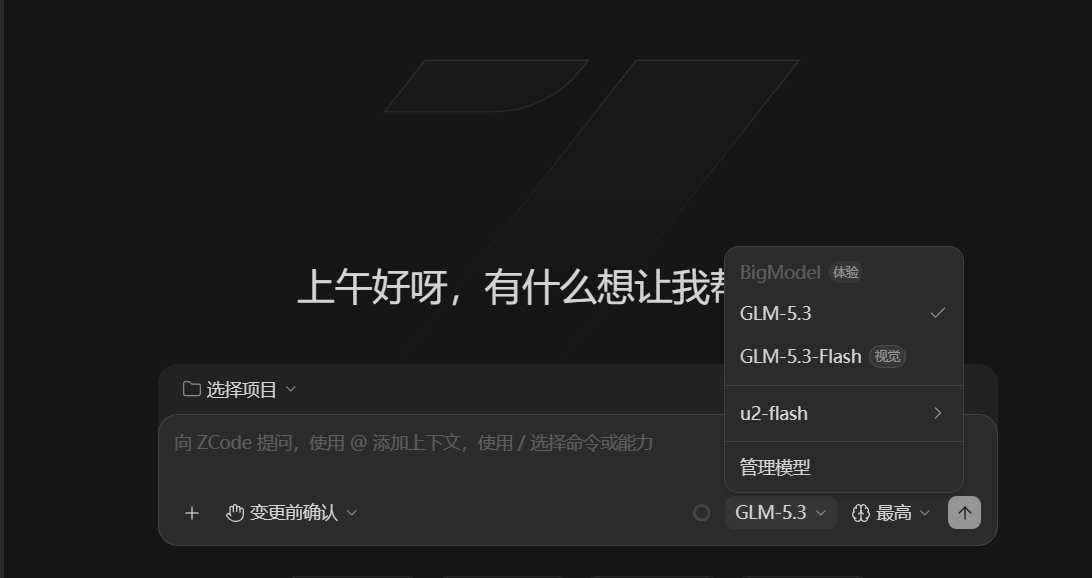
In the chat box, click the current model name, open the model picker, then choose Manage models at the bottom.
2. Add a custom provider
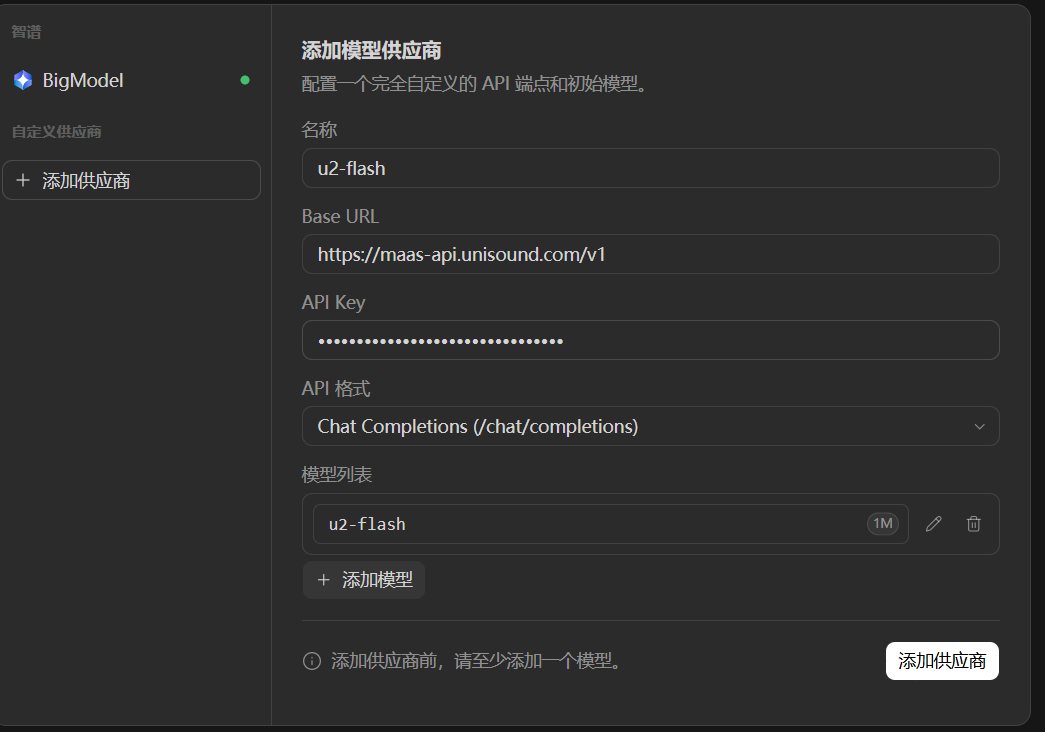
Click Add provider at the bottom of the provider list and fill in:
| Field | Value |
|---|---|
| Name | unisound |
| Base URL | OpenAI-compatible: https://maas-api.unisound.com/v1; Anthropic-compatible: https://maas-api.unisound.com/anthropic |
| API Key | sk-xxxxx (pay-as-you-go) / tp-xxxxx (plan-exclusive) |
See Preparation for how to get the Key and its format. Choose the API format based on the Base URL protocol.
3. Load and switch models
After the Base URL is confirmed, ZCode loads available models. Enable the provider, then pick the target model in the chat model picker.
4. Quick access to capability models
We provide U2-ASR, U2-TTS, U2-TTS-Clone, and U2-OCR capabilities. Add the matching model Skill in ZCode to call these services without integrating each model API separately.
Open a Skill page below to install via chat or CLI. After installation, the Skill guides you through model configuration.