U2Claw
U2Claw is a desktop AI agent launched by Unisound. By configuring it, you can connect to AI models on the Unisound Maas Platform through two access methods: pay-as-you-go and U Plan.
1. Preparation
Get configuration credentials
Two usage modes are supported, and each has a different way to obtain credentials:
- Base URL OpenAI-compatible protocol: https://maas-api.unisound.com/v1
- API Key
- Format: sk-xxxxx
Go to API Key Management to create an API Key
- Base URL OpenAI-compatible protocol: https://maas-api.unisound.com/v1
- API Key
- Format: tp-xxxxx
Go to Subscription Management to create an API Key
2. Install U2Claw
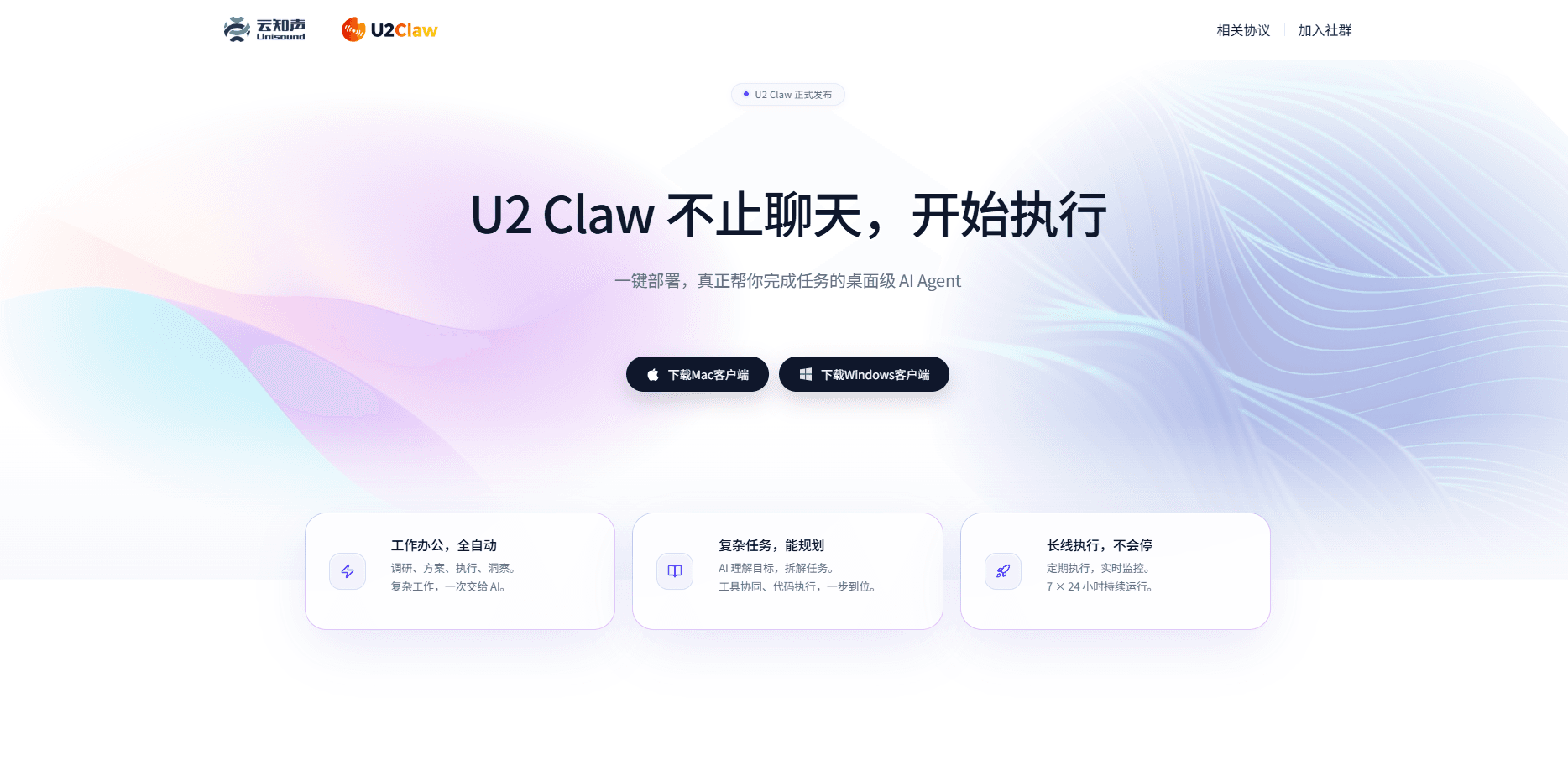
Visit the U2Claw website to download and install the version that matches your operating system.
3. Configure the target model
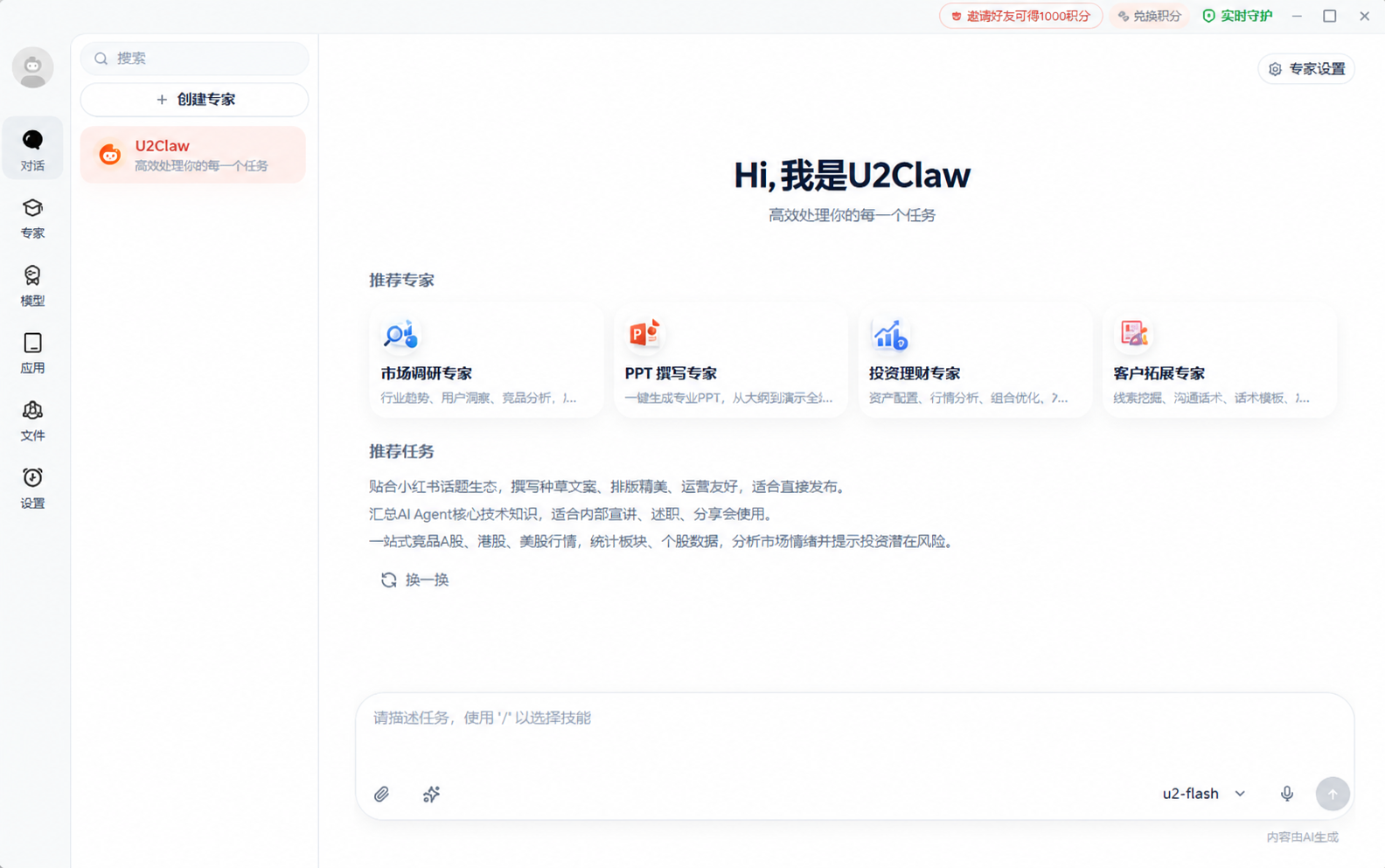
1. Add the U2-Flash model
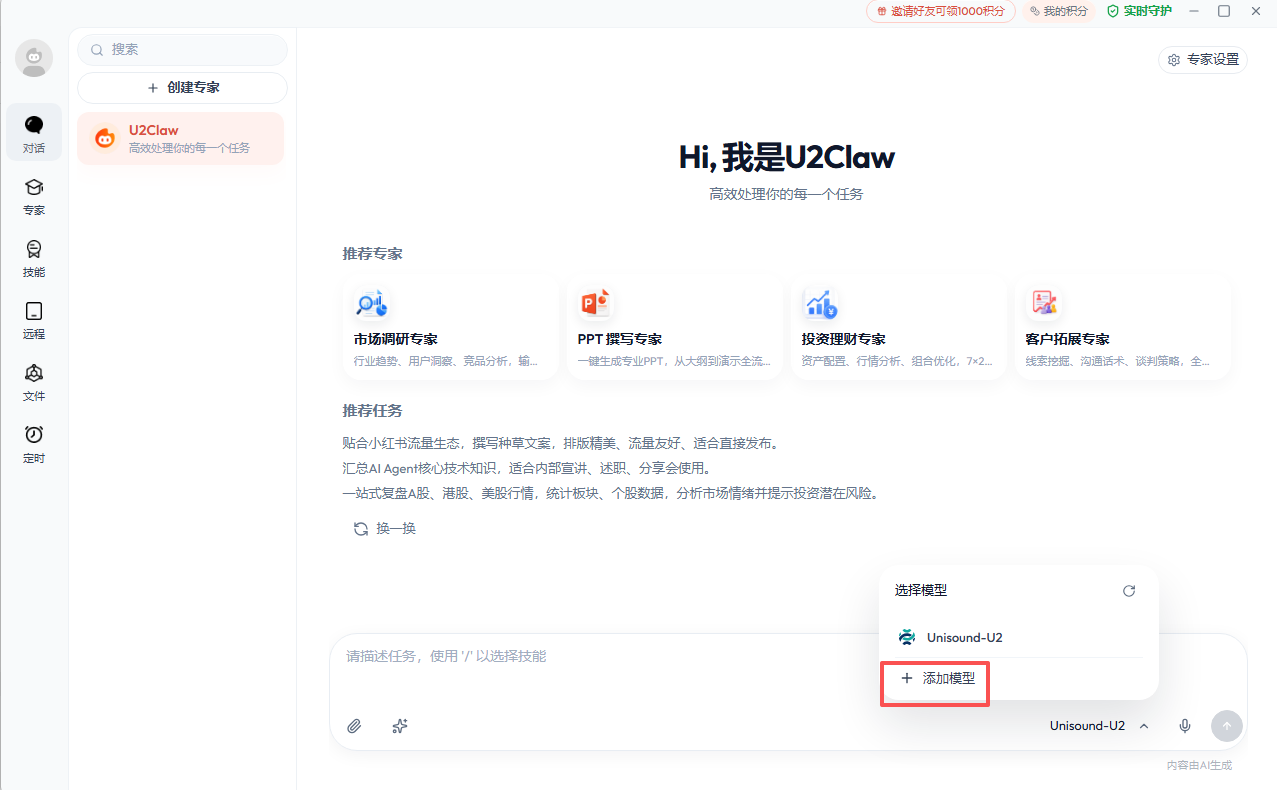
In U2Claw, click the model switch menu or go to Settings > Model Management to add a model.
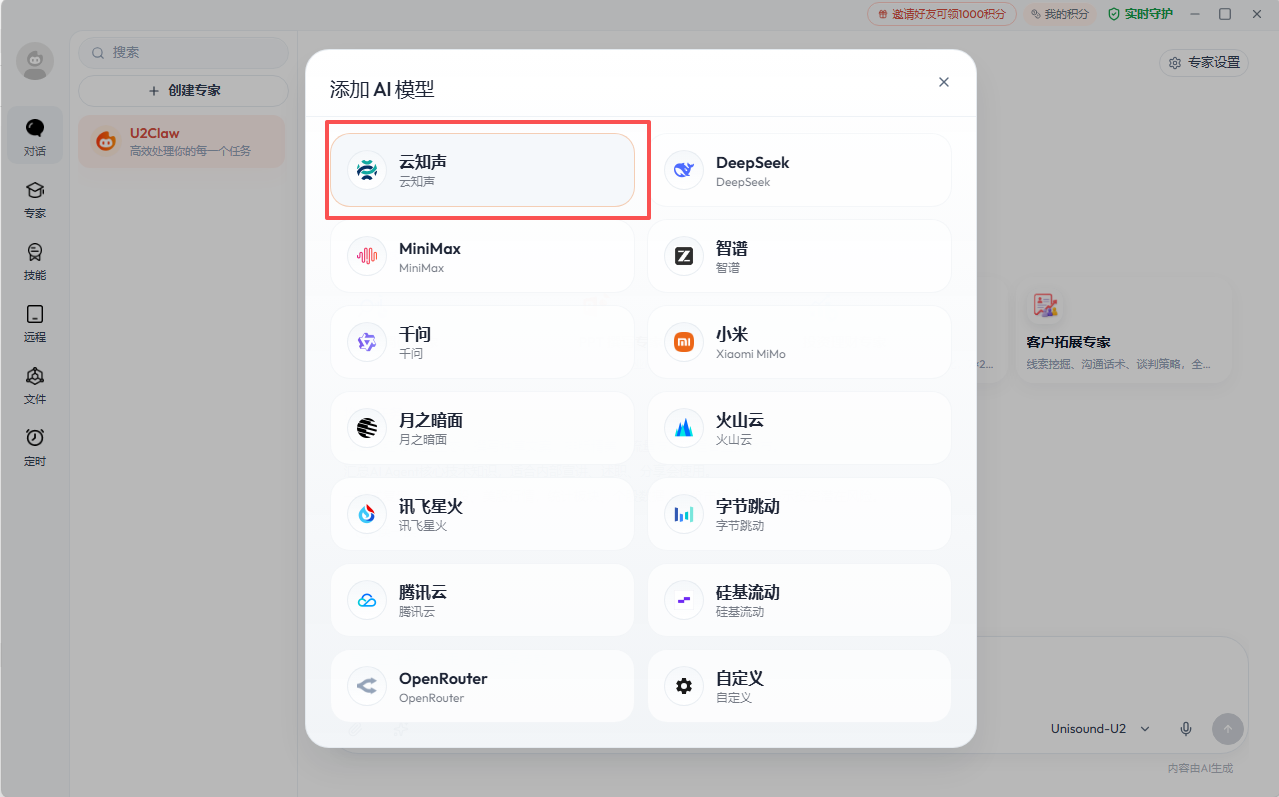
Select Unisound as the model provider
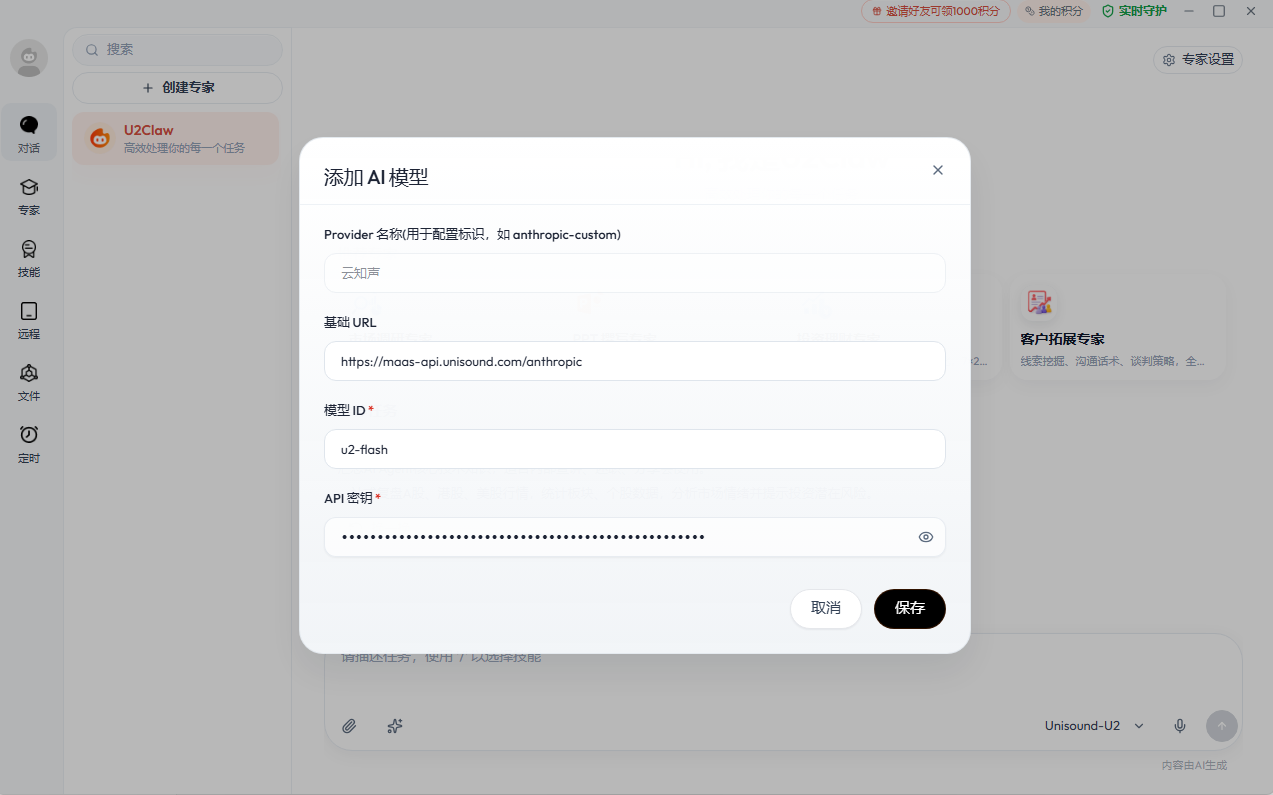
Configure the following fields:
- Base URL OpenAI-compatible protocol: https://maas-api.unisound.com/v1 Anthropic-compatible protocol: https://maas-api.unisound.com/anthropic
- API Key: Use the API Key obtained through the corresponding access method
2. Save and switch the model
After configuration is complete, save the settings and select the model you just created from the model list.
4. Quickly access capability models
We provide built-in U2-ASR, U2-TTS, U2-TTS-Clone, and U2-OCR capabilities. You only need to add the corresponding model Skill in WorkBuddy to quickly call these model services without integrating each model API separately.
Click the links below to open the corresponding Skill pages. You can install each Skill via chat or the command line. After installation, the Skill will guide you through configuring the related models.