Hermes Agent
Hermes Agent is a terminal AI coding tool. By configuring it, you can connect to AI models on the Unisound Maas Platform through pay-as-you-go and U Plan.
1. Preparation
Get configuration credentials
Two usage methods are supported, but the way to obtain the corresponding credentials differs.
- Base URL OpenAI-compatible protocol: https://maas-api.unisound.com/v1
- API Key
- Format: sk-xxxxx
Go to API Key Management to create an API Key
- Base URL OpenAI-compatible protocol: https://maas-api.unisound.com/v1
- API Key
- Format: tp-xxxxx
After subscribing successfully, go to Subscription Management to get the dedicated API Key
2. Install Hermes Agent
Hermes Agent supports Linux, macOS, and WSL2 (Windows). For more details, see the Hermes Agent official docs.
- Linux / macOS does not require extra setup; the default environment is enough.
- On Windows, refer to Install WSL on Windows to install WSL2 first, then run the commands below inside WSL2.
Installation command:
curl -fsSL https://raw.githubusercontent.com/NousResearch/hermes-agent/main/scripts/install.sh | bashAfter installation, reload the shell environment:
source ~/.bashrc # or source ~/.zshrcVerify the installation (if a version is printed, installation succeeds):
hermes --versionAfter installation, the following screen appears:
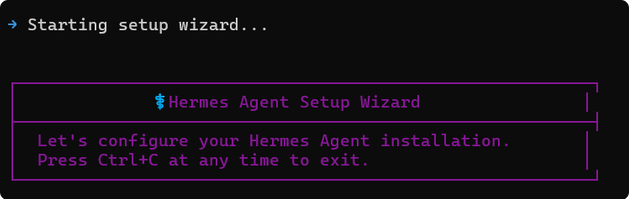
3. Configure access credentials
Security Reminder
Never share your secret key or embed it directly in browser/client-side code.
If you suspect leakage, delete it and regenerate immediately.
- Pay-as-you-go/model packages: Go to Console > API Key Management > Create API Key to get the API Key
Pay-as-you-go supports all multimodal models, including text, speech, vision, and more.
- U Plan: Go to Console > Subscription Management > U Plan to get the API Key
The plan-exclusive Key is used for plan quota. It can exist before paid resources are available; when you have plan quota, that quota is used first. See U Plan Subscription Overview
4. Configure U2-Flash in Hermes Agent
In the two configuration methods below, replace BASE_URL and API_KEY with the actual values you obtained.
Method 1: enter the following commands in online editing for quick configuration
The value of model.provider must be set to custom. Any other custom name is invalid, such as unisound-coding.
hermes config set model.provider custom
hermes config set model.base_url BASE_URL
hermes config set model.api_key UNISOUND_API_KEY
hermes config set model.default u2-flash
After configuration, you can inspect the settings in ~/.hermes/config.yaml.
Method 2: edit the configuration file manually
Manually edit ~/.hermes/config.yaml:
model:
  provider: custom
  base_url: BASE_URL
  api_key: UNISOUND_API_KEY
  default: u2-flash
Verify configuration
After configuration, run the following command to send a test message:
hermes chat -q "Hello"If a normal reply is returned, the configuration is successful. To switch models, use the -m parameter:
hermes chat -m qwen3.7-max5. Model Skill
We provide built-in U2-ASR, U2-TTS, U2-TTS-Clone, and U2-OCR capabilities. You only need to add the corresponding model skill in Hermes Agent to quickly call these model services without integrating each model API separately.
Click the links below to open the corresponding Skill pages. You can install each Skill via chat or the command line. After installation, the Skill will guide you through configuring the related models.